Dropbear setup
Using dropbear is a simple way to access other file systems, whether on Linux or Android.
This is how I setup the Android app SimpleSSHD
On the phone I setup the ssh directory to /storage/0/ssh
I run the app and reset the keys and verify the directory has the dropbear configuration files.
On my linux system I run
ssh-keygen -t rsa

Generating public/private rsa key pair.
Enter file in which to save the key (/home/simon/.ssh/id_rsa):
/home/simon/.ssh/id_rsa already exists.
Overwrite (y/n)? y
Enter passphrase (empty for no passphrase):
Enter same passphrase again:
Your identification has been saved in /home/simon/.ssh/id_rsa
Your public key has been saved in /home/simon/.ssh/id_rsa.pub
cp /home/simon/.ssh/id_rsa.pub /home/simon/authorised_keys
I then create a config file in .ssh called config
Host 192.168.0.247
Port 2222

Host f1
Port 2222
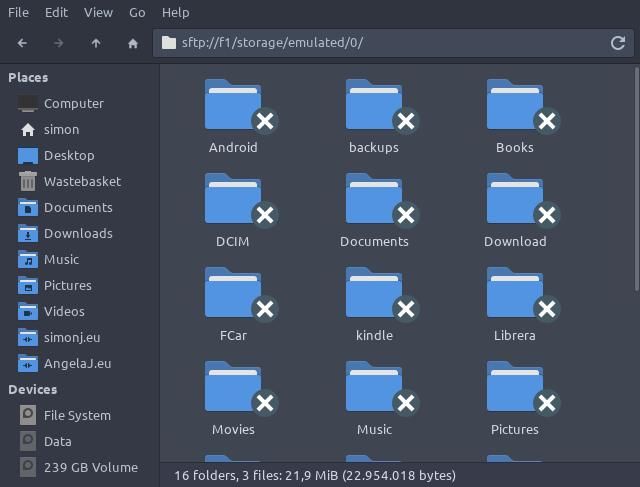
I run the SSH app on the phone and I can log in with Thunar or via the terminal
 ssh f1
:/ $ cd /storage/emulated/0
:/storage/emulated/0 $ ls
Android Documents Librera Pictures       backups           ssh
Books   Download  Movies  Power\ Toggles Telegram                   kindle
DCIM    FCar      Music   Signal
:/storage/emulated/0 $ exit
Connection to f1 closed.
If this is not the only machine to access the phone you would need to get the authorized_keys file from the phone and append the new key.
cat /home/simon/.ssh/id_rsa.pub >>/home/simon/authorised_keys
Posted
08:48 23-08-2021